Dashboard
A bird's-eye view of your entire agent fleet — live KPI strip, agent distribution, model leaderboard, and recent activity.
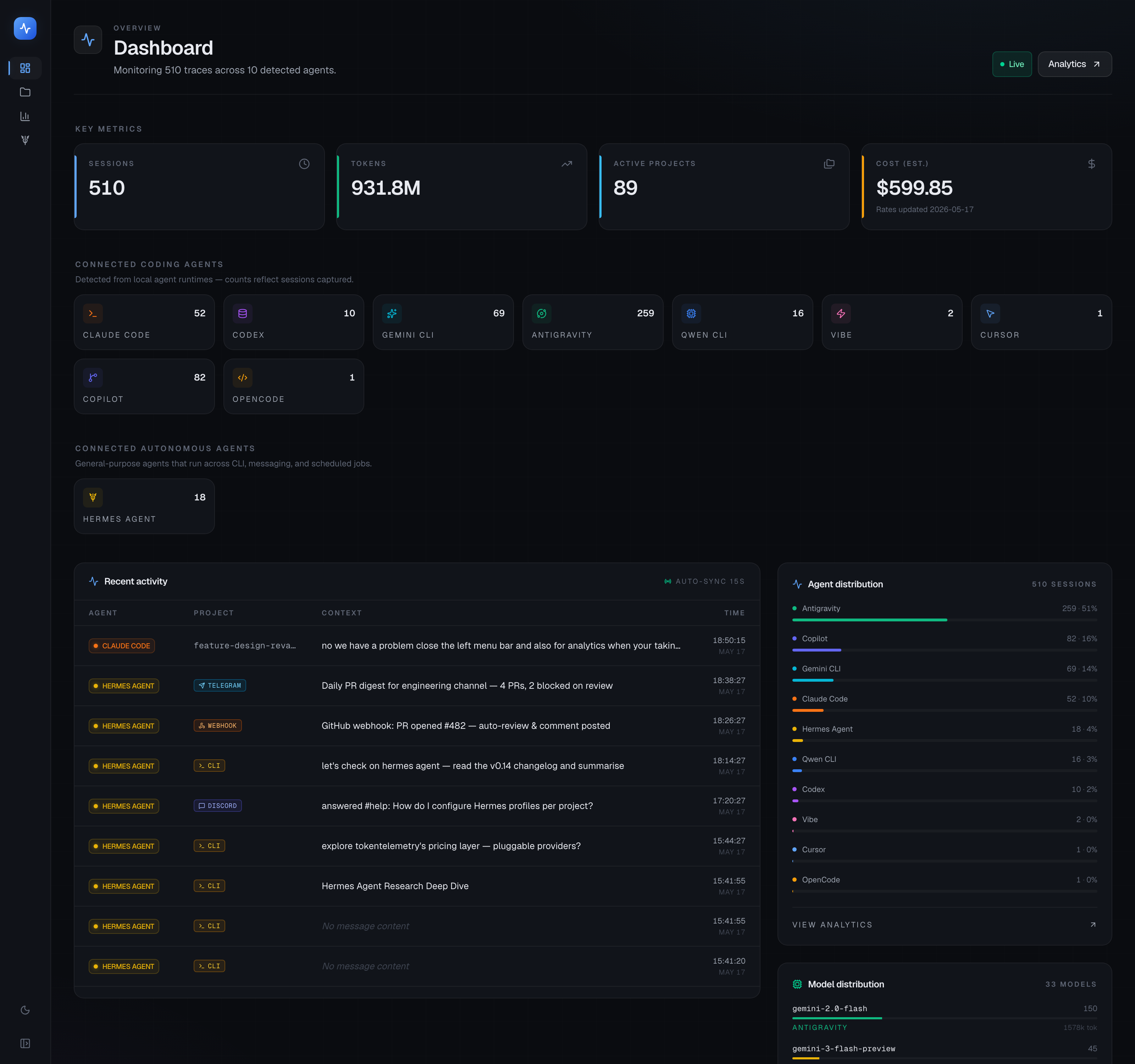
The Dashboard is the first page you see when you open TokenTelemetry. It gives you a real-time overview of all activity across every detected agent and model.
Video walkthrough
KPI strip
At the top of the dashboard are four KPI cards updated on every refresh:
| Card | What it shows |
|---|---|
| Sessions | Total number of agent sessions ever recorded |
| Tokens | Cumulative input + output tokens across all sessions |
| Projects | Number of distinct working directories |
| API-equivalent cost | Dollar estimate based on current model pricing |
Live 15-second sync
The dashboard polls the backend every 15 seconds. If an agent is actively running you'll see token counts increment in near-real-time without a manual refresh.
Coding vs autonomous agent split
A split view below the KPI strip shows how your usage breaks down between coding agents (Claude Code, Codex, Gemini CLI, etc.) and autonomous agents (Hermes Agent). This makes it easy to see at a glance how much of your token budget is coming from interactive sessions vs automated workflows.
Agent and model distribution
Two distribution charts show:
- Agent distribution — which agents you've used (Claude Code, Codex, Gemini CLI, etc.) and their share of total tokens.
- Model distribution — which LLMs (claude-sonnet-4-6, gemini-2.0-flash, etc.) are doing the most work.
Both charts are updated live.
Recent activity feed
A chronological feed of the most recent sessions across all agents. Each entry shows:
- Agent name and model
- Project directory
- Token count and cost for the session
- Relative timestamp ("3 minutes ago")
Click any entry to open the full session trace.
Local power toggle
If you have local models configured (Ollama, llama.cpp, etc.) a Local power toggle appears on the dashboard. Enabling it shows a power and CO₂ panel alongside the cost numbers. See Local Models & Power Cost for setup.
Tips
- The KPI numbers are cumulative across your full history. Use Analytics to filter by date range.
- The agent distribution chart only shows agents with at least one session. Newly-installed agents appear after their first session completes.
- If the token count seems wrong for a session, open the trace and check the "token/cost header" at the top — it shows the exact numbers the session log reported.